Published 29 July 2026 · ~7 min read · By the Phixo team
An email lands with a jolt of a subject line: “Some of your saved passwords were found online.” Your first instinct is probably right on both counts — yes, this could be real, and yes, it could be a trap. Unlike most phishing themes, this one copies an email Google actually sends, which is precisely why it works so well as a scam. Let’s sort out which one you’re holding.
The rule that keeps you safe either way: never act on this email through its own links. If the warning is real, the exact same alert is waiting for you at passwords.google.com — type that address yourself, sign in as usual, and run Password Checkup there. If nothing shows up, the email was a fake and you’ve lost nothing but thirty seconds.
Yes, Google really sends this email
Google Password Manager — the thing that offers to save your passwords in Chrome and on Android — includes a feature called Password Checkup. It quietly compares your saved passwords against huge databases of credentials leaked in third-party data breaches. When one of your saved passwords shows up in a known breach, Google warns you: inside Chrome, inside your Google Account, and often by email.
The genuine email typically:
- comes from no-reply@accounts.google.com — Google’s standard address for security notifications;
- addresses you by the name on your Google Account, not “Dear User” or “Dear Customer”;
- tells you a password saved in your Google Account was exposed in a breach of some other website — not that Google itself was hacked;
- points you to Password Checkup inside your own Google Account to review and change the affected passwords.
One important nuance: the breach usually isn’t Google’s. Some site where you had an account — a shop, a forum, an old app — got breached, the stolen password list ended up circulating online, and Google spotted that one of your saved passwords was in it. The alert is Google doing you a favour.
Why scammers copy this exact email
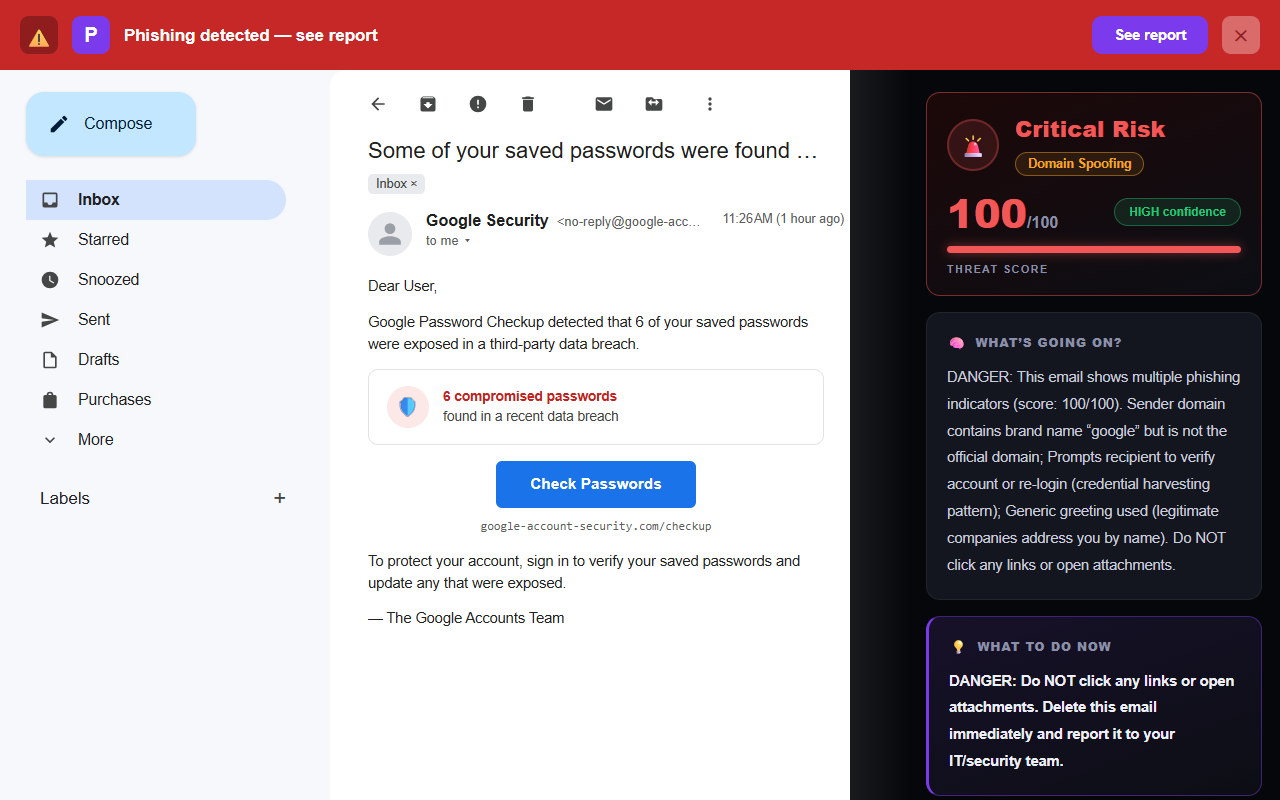
Look at it from the attacker’s side: this is the perfect phishing template. It’s scary (“your passwords are exposed”), it’s plausible (Google really sends it), and its natural next step is the exact thing phishing wants — getting you to a sign-in page. The fake version copies Google’s layout and wording, swaps the button destination for a lookalike login page, and waits for you to type your Google password into it. One password typed into the wrong box, and the attacker owns the account that resets every other account you have.
Fake: Google Security <no-reply@google-account-security.com> — “Dear User, …”
Five checks that settle it
1. Read the sender’s domain from the right
The real address ends in accounts.google.com — the registered domain is google.com. Fakes rely on the brand name appearing somewhere in the address: google-account-security.com, security-google.net, accounts-google.com. All of them contain “google”; none of them are google.com. The only part that matters is what comes immediately before the final dot-com (or dot-net, and so on).
2. Check the greeting
Google knows your name — it’s on the account. The real alert uses it. A generic “Dear User” or no greeting at all on a password warning is a strong fake signal.
3. Ask what the button really wants
The real email leads to Password Checkup inside your Google Account — and if you’re already signed in on that device, it won’t demand you re-enter your password on some intermediate page. A fake exists for exactly one purpose: to put a password box in front of you. Any version of “sign in to verify your passwords” on a page you reached from the email is the trap itself.
4. Hover the button before you even think about it
On desktop, rest your mouse on the button and read the destination in the corner of your browser. Real: an address on google.com. Fake: anything else, however official it sounds. On a phone, press and hold to preview the link — or better, don’t bother, and just use the direct route below.
5. Verify from the outside
This is the check that beats all fakes: open a new tab, type passwords.google.com, and run Password Checkup yourself. Real warnings will be right there, listed next to the affected sites. If Checkup shows nothing while the email screams emergency, you have your answer.
If the alert is real: what to actually do
- Run Password Checkup at passwords.google.com (or in Chrome: Settings → Passwords → Checkup). It shows exactly which saved passwords were compromised, which are reused, and which are weak.
- Change the compromised passwords first — on the affected sites, signed in directly, each to something new and unique. The breach exposed those specific passwords; they’re burned regardless of how you feel about the email.
- Break the reuse. If a leaked password is one you also use elsewhere, change it there too — attackers try leaked passwords against popular sites automatically. We’ve written a calm, priority-ordered version of this whole process in what to do when a password is exposed.
- Turn on two-factor authentication for your Google Account above all — it makes a stolen password useless on its own.
If it’s fake: two minutes of cleanup
Don’t click anything in it. In Gmail, open the three-dot menu on the message and choose Report phishing — that both removes it and helps Google block the campaign for everyone else. If you already clicked and — worse — typed your Google password on the page it opened, treat it as compromised: change it right now at accounts.google.com (typed in yourself), sign out all other sessions, and switch on two-factor authentication. The full recovery sequence is in our password-recovery checklist.
The 30-second version
- Google does send this email — from no-reply@accounts.google.com, addressed to you by name.
- A lookalike domain (“google” anywhere except google.com) or a “Dear User” greeting = fake.
- Never act through the email’s links — go to passwords.google.com yourself.
- Real alert? Change the listed passwords + kill any reuse. Fake? Report phishing and delete.
- Typed your password on a fake page? Change it now, sign out all sessions, turn on 2FA.
How Phixo helps with this one
This scam’s whole strategy is looking identical to a real Google email — and to a rushed human, it does. Software doesn’t rush. Phixo checks the details that don’t survive imitation: whether the sender’s registered domain is actually google.com or just contains “google”, whether the message passes the SPF, DKIM and DMARC authentication checks a real Google email always passes, where every link truly points, and whether the language leans on the re-login prompts and generic greetings that credential phishing can’t do without. You get the verdict with the reasons spelled out, before you’ve clicked anything.
Frequently asked questions
Does Google really send an email saying my saved passwords were found online?
Yes. Google Password Manager’s Password Checkup compares your saved passwords against known data breaches, and Google notifies you when there’s a match — including by email with wording very close to “some of your saved passwords were found online”. The email itself is real; the problem is that scammers send lookalike versions, so check the sender before acting.
Is no-reply@accounts.google.com legit?
Yes — that’s Google’s genuine address for account and security notifications, including password alerts. But treat the address as one check, not the whole answer: display names can be dressed up, and scammers register lookalike domains hoping you’ll skim. The safe move is to skip the email’s links entirely and go to your Google Account directly.
How do I check if my passwords were really exposed?
Not through the email. Open a new tab, type passwords.google.com, sign in as normal, and run Password Checkup. It lists compromised, reused and weak passwords straight from Google’s own data. If the alert was real, the same warnings will be waiting there; if Checkup is clean, the email was a fake.
What does the fake version want?
Your Google password. The fake copies Google’s design and urgency, but its button leads to a lookalike sign-in page that records what you type. Google’s real alert never needs you to enter your password on a page you reached from the email — the real fix happens inside your Google Account, which you open yourself.
I clicked the link and typed my password — what now?
Change your Google password immediately at accounts.google.com, typed into the browser yourself — minutes matter. Sign out all other sessions from your security settings, turn on two-factor authentication, and change that password anywhere you reused it. Then work through the full recovery checklist.
Keep reading
- Google “Critical security alert” emails — The other real-Google-email-that-gets-faked, and how to tell.
- I gave my password to a phishing site — what now? — The calm, priority-ordered recovery checklist.
- Free phishing test — 8 realistic emails, half real, half fake. Can you tell which is which?
- The best anti-phishing browser extensions — The tools that catch emails like this one, compared side by side.
Let Phixo read the fine print for you
Phixo is a browser extension that checks each email you open in Gmail or Outlook against several signals — sender and domain reputation, email authentication (SPF, DKIM, DMARC), Google Safe Browsing, link mismatches and lookalike domains — plus an AI read of the language, then flags anything suspicious with a plain-English reason before you click. Free plan includes 10 scans a day, no credit card. A one-time Google or Microsoft sign-in keeps your scan count tied to your account.
Install Phixo free →Your email body is never stored. Analysis happens in real time and is discarded immediately.