Published 17 July 2026 · Updated 9 August 2026 · ~8 min read · By the Phixo team
The subject line alone is enough to spike your pulse: “Microsoft account unusual sign-in activity.” Someone, somewhere, may have just tried to get into your email, your OneDrive, your saved files. The message offers a button to review the activity — and every instinct says to click it right now.
Here’s what makes this one genuinely tricky: Microsoft sends this exact email, routinely. Any unusual login or failed sign-in attempt on a Microsoft account can trigger a real alert. Scammers know you’ve seen the genuine version before, so they copy it almost perfectly and swap the button for a fake login page. The good news: real Microsoft alerts follow consistent rules, and the fakes almost always break at least one. Here’s how to check in under a minute.
The quick answer
Treat a Microsoft sign-in alert as fake if any of these are true: it comes from an address that isn’t on a microsoft.com domain, it threatens to suspend or close your account within hours, it asks you to “verify” your password or payment details, or it carries an attachment. The single most reliable move: don’t click anything in the email. Open a fresh tab, type account.microsoft.com yourself, and open Security → Sign-in activity. Every real sign-in and sign-in attempt is listed there. If the email’s warning isn’t reflected in that list, the email is the fake — not the login.
What a real Microsoft sign-in alert looks like
Knowing the genuine pattern makes the fakes stand out:
- It comes from a Microsoft address. The real alert is sent from account-security-noreply@accountprotection.microsoft.com — a microsoft.com domain. A sender like microsoft-account-alert.com or msft-security.net is not Microsoft, no matter what the display name says.
- It shows the actual sign-in details. Real alerts include the country or approximate location, the IP address or device platform, and the date and time of the attempt. A vague “we detected unusual activity” with no specifics is a red flag.
- It links only to Microsoft’s own domains. The “Review recent activity” link in a genuine alert points to account.live.com or account.microsoft.com — never to a third-party domain or a login form hosted elsewhere.
- It never asks for your password in the email. A real alert asks you to review activity. It doesn’t ask you to “confirm” your password, enter a card number, or reply with a verification code.
- It doesn’t threaten immediate deletion. “Your account will be suspended within 24 hours” is scam language. Real Microsoft alerts inform; they don’t race you against a clock.
Important nuance: a real “unusual sign-in activity” email often refers to a failed attempt — someone trying an old leaked password against thousands of accounts, including yours, and getting blocked. Alarming to read, but it usually means the system worked. The fake weaponises that exact fear to rush you onto a lookalike login page.
6 signs of a fake Microsoft sign-in alert
1. The sender domain isn’t microsoft.com
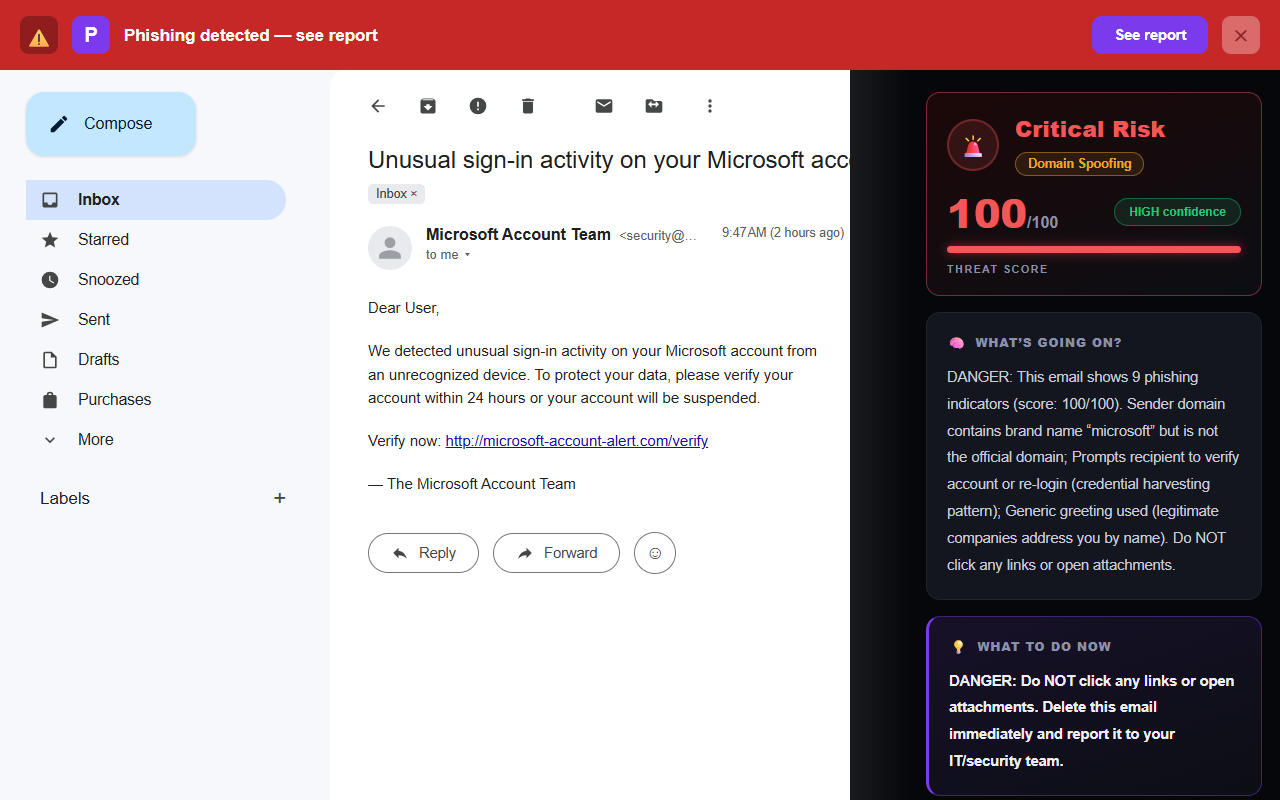
The display name — “Microsoft Account Team,” “Microsoft Security” — is trivial to fake. The address behind it is harder. Tap or click the sender name to reveal the full address and read the part after the @.
<security@microsoft-account-alert.com>
Real alerts come from account-security-noreply@accountprotection.microsoft.com. The key is the registered domain: accountprotection.microsoft.com is a subdomain of microsoft.com. microsoft-account-alert.com is a completely different domain that merely contains the word “microsoft.”
2. A countdown and a threat
“Verify within 24 hours or your account will be permanently suspended.” Microsoft doesn’t suspend your account for ignoring a sign-in notification — that would make no sense; the notification exists to protect the account. Urgency plus a threat is the oldest pressure combination in phishing, and it’s there to stop you from doing exactly what this article suggests: checking calmly through the official site.
3. Links that don’t go to a Microsoft domain
Before clicking, hover over the button (or press and hold on mobile) to preview the true destination.
Actual destination: http://microsoft-account-alert.com/verify
A genuine review link lives on account.live.com or account.microsoft.com. If the destination is a different domain, a shortened URL, or a raw IP address, don’t click.
4. A lookalike domain built to survive a glance
microsoft-verify.com (extra words bolted on)
account.microsoft.com.security-check.net (the real domain is security-check.net)
That last pattern catches even careful readers: the address starts with the real domain, but everything before the final two segments is just a subdomain the scammer created. Read domains from the right: the registered domain is the part immediately before the last dot-something.
5. It asks you to “verify” your password or payment
The entire purpose of a phishing page is to capture what you type. A real Microsoft alert only asks you to look at your activity. Any “security alert” that routes you to a form demanding your password, a code, or card details should be treated as hostile.
6. A generic greeting
Microsoft knows your name and usually addresses the account by its email address. “Dear User” or “Dear Customer” in a security alert is a strong tell that the message was blasted to a list, not generated for your account.
The single safest way to check
Every sign above helps, but one move beats them all because it takes the email out of the equation entirely: check your sign-in activity at the source.
- Don’t click any link or button in the email.
- Open a new browser tab and type account.microsoft.com by hand (or use a bookmark you trust).
- Sign in, then open Security.
- Open Sign-in activity. Every recent sign-in and attempt is listed with time, location, device and whether it succeeded.
If the email’s warning isn’t reflected in that list, the email is the fake — not the login. And if you do see an attempt you don’t recognise, you can secure the account from that same page — change the password, sign out other sessions — without ever touching the email.
This verify-at-the-source habit defends you against nearly every brand-impersonation scam. It’s the same principle we walk through for the fake Google “security alert” email — the Google and Microsoft versions of this scam are near-identical twins.
The 30-second Microsoft alert check
- Does the sender address end in microsoft.com?
- Does it show real details — time, location, device — or just vague alarm?
- Where does the button actually point — account.microsoft.com or elsewhere?
- Is it asking me to type a password, code, or payment detail?
- Is it threatening to suspend my account on a deadline?
- When unsure — can I open account.microsoft.com directly instead?
Why this fake fools careful people
Three things make the Microsoft version unusually effective. First, the real email exists and is common — if you use Outlook, Xbox, OneDrive or Windows, you’ve probably received a genuine one, so the fake arrives pre-trusted. Second, a Microsoft account is a master key: email, files, purchases, sometimes your Windows login itself — the fear of losing it all is strong enough to override caution. Third, the real alerts are often about failed attempts, so people have learned these emails sometimes really do mean someone is probing their account.
A convincing fake copies Microsoft’s layout, logo and wording exactly. That’s why appearance is the wrong thing to judge on. The reliable tells — the sender domain, the true link destination, and whether the activity actually appears at account.microsoft.com — are things a scammer can’t fake by copying a template. If you want to see the technical trail an email leaves, our free email header analyzer shows where a message really came from and whether it passed authentication.
The exact wording these scam emails use
Scammers reuse a small set of phrasings because they test well — and many people paste the exact sentence into a search engine to check it, which is often how they land here. If the email in front of you reads like one of these almost word for word, treat that familiarity as the trap, not reassurance, and check it at the source:
- “Unusual sign-in activity” — or “We detected a sign-in from a new device or location.”
- “Someone may have accessed your account” / “Was this you?”
- “This is a copy of a security alert sent to your account.”
- “Your account will be suspended within 24 hours unless you verify your identity.”
The same “unusual login activity” language even gets bolted onto scams that have nothing to do with Microsoft — fake reward or bonus emails claiming an “assessment revealed unusual activity” that makes you “ineligible” unless you act now. The lesson doesn’t change: the sentence is trivial to copy, so judge the sender address and the true link destination, never the wording.
What if you already clicked or entered your details?
Don’t panic — act quickly. Go to account.microsoft.com directly (not through the email) and:
- Change your password straight away, and make the new one unique to Microsoft.
- Turn on two-step verification under Security if it isn’t already on.
- Review Sign-in activity and check for sessions or attempts you don’t recognise.
- Check your email rules in Outlook — attackers who get in often add a hidden forwarding rule so they keep reading your mail after you change the password.
- Change the password anywhere you reused it. If that password protected other accounts, treat them as exposed too.
We’ve written a calm, step-by-step guide for exactly this moment: what to do if you clicked on a phishing link. And to get sharper at catching these before they catch you, see the 8 warning signs of a phishing email.
Frequently asked questions
Does Microsoft really send “unusual sign-in activity” emails?
Yes. Microsoft genuinely emails you when it notices a sign-in or sign-in attempt that doesn’t match your usual pattern — from account-security-noreply@accountprotection.microsoft.com. Real alerts include the date, approximate location and device of the attempt, and link only to Microsoft’s own domains. Because these real alerts are so common, scammers copy them closely.
How can I tell if a Microsoft sign-in alert is real or fake?
A real alert comes from a microsoft.com address, shows the specific sign-in details, never asks for your password or payment inside the email, and links only to account.microsoft.com or account.live.com. Treat it as fake if the sender domain is anything else, if it threatens to suspend your account within hours, or if it asks you to confirm credentials or card details.
What is the safest way to check?
Don’t click anything in the email. Open a new tab, type account.microsoft.com yourself, sign in, and open Security → Sign-in activity. Every recent sign-in and attempt is listed there. If the email’s warning isn’t reflected in that list, the email is the fake, not the login.
Is account-security-noreply@accountprotection.microsoft.com a real Microsoft address?
Yes. accountprotection.microsoft.com is a genuine Microsoft subdomain, and it’s the address real sign-in and security alerts are sent from. Scam versions use lookalikes such as microsoft-account-alert.com or account-protection.net that merely contain the words “microsoft” or “protection” — read the part immediately before the final .com to tell them apart.
I got an unusual sign-in email but I didn’t try to log in. Should I worry?
Usually not. A genuine alert about a failed attempt normally means someone tried a leaked password against your account and Microsoft blocked it — the system did its job. Don’t click the email; open account.microsoft.com directly, check Sign-in activity, and if you’re still on an old password, change it and turn on two-step verification. If the email itself is the fake, ignoring it costs you nothing.
Does Microsoft send these alerts by text message too?
Microsoft can send a security code or alert by SMS if you’ve added a phone number, but it will never text you a link asking you to “verify” your account or password. Treat a texted link exactly like an emailed one — don’t tap it; open account.microsoft.com yourself. (Phixo checks email in Gmail and Outlook; it can’t see text messages, so verify those by hand.)
Keep reading
- Is that Google "security alert" real? — This scam’s near-identical Google twin, dissected.
- The 8 warning signs of a phishing email — The full checklist behind every guide on this blog.
- What to do if you clicked a phishing link — Already clicked? Damage control, step by step.
- The best anti-phishing browser extensions — The tools that catch emails like this one, compared side by side.
Not sure about an email? Let Phixo check it
Phixo is a browser extension that checks the email open in your Gmail or Outlook against several of the signals above — sender and domain reputation, link mismatches, lookalike domains, and email authentication (SPF, DKIM, DMARC) — plus an AI read of the language, and flags anything suspicious in seconds. Free plan includes 10 scans a day, no credit card. A one-time Google or Microsoft sign-in keeps your scan count tied to your account.
Install Phixo free →Your email body is never stored. Analysis happens in real time and is discarded immediately.